Understanding the config files
The configuration files are Python dictionaries saved in .toml - files that contain details about the machine on which the toolbox is running, the experiment that runs, the data the toolbox runs on, the detectors and algorithms it is using, a mapping between different data identifiers, as well as the visualization that shows the toolbox’s results. Most of these configuration dictionaries may contain placeholders which are explained first.
Placeholders
Placeholders can be put into strings and are filled automatically during run-time. All configs support the use of placeholders, where reasonable.
Placeholders are indicated by enclosing characters < and > and may take the following values:
All keys in
./machine_specific_paths.tomland./nice_project.toml, as well as<project_folder_path>(the absolute path to the project folder passed via--project_folder_path),All keys from
ioas defined in./configs/detectors_run_file.toml,The keys
<cur_dataset_name>,<cur_component_name>,<cur_algorithm_name>,<cur_session_ID>,<cur_sequence_ID>,<cur_camera_name>,<cur_video_start>, and<cur_video_length>that define the current experiment run are filled during program execution based on the specifications in the run file./configs/detectors_run_file.toml,The options
<git_hash>,<me>,<today>,<yyyymmdd>,<time>, and<pwd>.
Some examples:
The default output folder path defined in the run file’s io is
"<output_folder_path>/experiments/<experiment_name>". During run time, the placeholder<output_folder_path>is filled from the project config and the<experiment_name>is replaced by the value defined in the same dictionary as the output folder path, the run file’s io.A typical example value for the data_input_folder in a dataset’s properties is
"<datasets_folder_path>/test_dataset/<cur_session_ID>/<cur_camera_name>". The<datasets_folder_path>is filled from the project config and both<cur_session_ID>and<cur_camera_name>are filled during run time individually for each experiment, as defined in the run file’s experiment selection.
Machine specifics
The ./machine_specific_paths.toml file configures paths specific to the machine running NICE Toolbox. It is part of .gitignore and must be created on each machine. Generate it with make create_machine_specifics.
conda_path = ''
# Optional; leave empty if you do not run detectors that need Hugging Face gated weights.
hugging_face_token = ''
conda_pathcontains the absolute path to the conda installation on the machine (str).hugging_face_tokenis an optional secret for Hugging Face Hub (e.g. sam_3d_body, WhisperX pyannote diarization). Hub-based detectors read only this field (not shell environment variables).
Project config
The ./nice_project.toml file configures paths specific to a project (datasets, outputs, configs). It is gitignored and generated with make create_project. The <project_folder_path> placeholder is automatically set to the absolute path of the folder passed via --project_folder_path.
configs_folder_path = '<project_folder_path>/configs'
datasets_folder_path = '../datasets'
output_folder_path = '../outputs'
configs_folder_pathis the path to the project’s config folder (str). Used as the default location for all config files.datasets_folder_pathis the path to the directory in which all datasets are stored (str).output_folder_pathis the path to the directory in which all toolbox output is saved (str).
Run file
The run file ./configs/detectors_run_file.toml defines the experiments to run. This config consists of four parts, that detail general properties, the chosen detectors, the dataset(s), and the experiment’s output files. The config supports placeholders as described here. Each part is described in the following.
General properties
Properties that apply to all experiments.
visualize = true
save_csv = true

error_level = "DETECTOR"
log_level = "INFO"

check_missing_detectors_dependencies = true
visualizeenables saving of intermediate results per detector (bool). Disable for a faster run time, enable for test runs of smaller data subsets and debugging.save_csvenables saving all results to 2d tables in csv-files (bool).error_levelcontrols how strictly errors abort processing (str). Options:"DETECTOR"(skip failed detectors),"SEQUENCE"(skip failed sequences),"STRICT"(halt on any error).log_levelsets the logging verbosity (str). Options:"CRITICAL","ERROR","WARNING","INFO","DEBUG".check_missing_detectors_dependencieswhen true, verifies that all selected detectors have their input dependencies enabled before running (bool).
Choosing algorithms to run
The algorithms field lists which algorithm instances (defined in detectors_config.toml) to run. All listed algorithms are applied to every dataset in the [run] section.
algorithms = ["hrnetw48", "vitpose_huge", "eth_xgaze", "gaze_fusion", "gaze_distance"]
Defining the experiments
NICE Toolbox supports running multiple datasets sequentially from a single program call.
[run] defines which data to process. Each key is a dataset name; the value specifies which video segments to run on:
[run.dataset_name]
videos = [
    {session_ID = "", sequence_ID = "", video_start = 0, video_length = 100},
    ...
]
videosdefines which data of the chosen dataset to run on (list of dict). Each dictionary of the form{session_ID = "", ...}selects one video snippet. Multiple entries run sequentially.session_IDselect the dataset’s session (str), must match a session_ID defined in the dataset’s properties.sequence_IDselect the dataset’s sequence, if applicable, may be an empty string (str, optional), must match a sequence_ID defined in the dataset’s properties.video_start- starting point of the video (int or timestamp).video_length- duration of the video segment (int or timestamp).
Both
video_startandvideo_lengthaccept either frame numbers or timestamps:Frame-based format:
video_start: Frame number (0 for the beginning).video_length: Number of frames.video_start+video_lengthmust not exceed the total frame count.video_lengthcan be set to-1, which means all frames until the end of the video.
Timestamp format:
Accepts:
HH-MM-SS,HH-MM-SS.mmm,HH:MM:SSorHH:MM:SS.mmmExamples:
00:01:12.100- starts 1 minute, 12 seconds, and 100 milliseconds from the beginning00-05-30- starts 5 minutes and 30 seconds from the beginning
Constraint:
video_start+video_lengthmust not exceed the video duration
Note
The folder structures of a dataset inside the NICE Toolbox are designed such that the session ID and, if applicable, the sequence ID of a given dataset clearly define one video (stored as a video file or frames) of the data. The keys video_start and video_length refer to this video.
Input and output files
The last part of the run file specifies where inputs can be found and any output of the NICE Toolbox gets saved.
[io]
experiment_name = "<yyyymmdd>"
out_folder = "<output_folder_path>/experiments/<experiment_name>"
out_sub_folder_name = "<cur_dataset_name>_<cur_session_ID>_<cur_sequence_ID>_s<cur_video_start>_l<cur_video_length>"
out_sub_folder = "<out_folder>/<out_sub_folder_name>"
csv_out_folder = "<out_sub_folder>/_csv_files"
nicetoolbox_input_folder = "<output_folder_path>/nicetoolbox_input/<cur_dataset_name>_<cur_session_ID>_<cur_sequence_ID>"
code_folder = "<pwd>"
assets = "<code_folder>/nicetoolbox/detectors/assets"
asset_manifest = "<code_folder>/configs/asset_manifest.toml"
dataset_properties = "<configs_folder_path>/dataset_properties.toml"
detectors_config = "<configs_folder_path>/detectors_config.toml"
predictions_mapping = "<configs_folder_path>/predictions_mapping.toml"
detector_folder = "<out_sub_folder>/<cur_component_name>/<cur_algorithm_name>"
detector_out_folder = "<detector_folder>/detector_output"
detector_visualization_folder = "<detector_folder>/visualization"
detector_additional_output_folder = "<detector_folder>/additional_output"
detector_run_config_path = "<detector_folder>"
detector_final_result_folder = "<out_sub_folder>/<cur_component_name>"
experiment_namedefines the name under which all experiments are run (str), defaults to today’s date (in format YYYYMMDD).out_folderis the top level directory where the results of all experiments are saved (str).out_sub_folder_nameis the name template for a single experiment run (str).out_sub_folderis the full output directory path for a single experiment run (str).csv_out_folderis where CSV result files are saved (str).nicetoolbox_input_folderis the path to the directory in which pre-processed input data gets stored during run time (str). As different algorithms require different file formats and folder structures as input, the NICE Toolbox prepares the given data accordingly. This pre-processed data is cached for faster run times when repeating runs over the same data.code_foldernames the machine’s folder path to the nicetoolbox repo (str), filled automatically.assetsstores the folder path of additional assets, like model checkpoints and weights (str).asset_manifestis the path to the asset manifest config that tracks downloadable model weights (str).dataset_properties,detectors_config, andpredictions_mappingstore where to find those config files (str). All default to the project’s<configs_folder_path>.detector_folder,detector_out_folder,detector_visualization_folder,detector_additional_output_folder,detector_run_config_path, anddetector_final_result_folderdefine where each detector stores intermediate and final outputs (str). The final results of all components and algorithms per detector are saved underdetector_final_result_folder.
Dataset properties
Properties that are specific per dataset are collected in ./configs/dataset_properties.toml. For each dataset, these include:
[dataset_name]
session_IDs = ['']
sequence_IDs = ['']
cam_front = ''
cam_top = ''
cam_face1 = ''
cam_face2 = ''
subjects_descr = []
cam_sees_subjects = {}
path_to_calibrations = ""
data_input_folder = ""
start_frame_index = 0
fps = 30
session_IDslists all identifiers of the dataset’s sessions (list of str).sequence_IDslists all identifiers of the dataset’s sequences (list of str, optional).cam_frontcontains the name of the camera view that observes the scene from the front (str). Best, it faces the subjects at about eye-height.cam_top,cam_face1, andcam_face2are the names of optional additional camera views for multi-view predictions (str, optional). These cameras include a frontal view from top and views of one or two subject’s faces.subjects_descrlists identifiers for the subjects in each video or frame, ordered from left to right (list of str). The number of identifiers must match the number of people visible in the videos/frames.cam_sees_subjectsdefines which camera view records which subject (dict: (cam_name, list of int)). It is a dictionary with the camera_names from above as keys. For each camera, the value describes the subjects it observes from left to right. Hereby, each subject is represented by its index in subjects_descr, where indexing starts with 0.path_to_calibrationsdefines the path to the calibration files (str, optional). It likely contains the placeholder<datasets_folder_path>.data_input_folderdefines the path to the video or image files of the dataset (str). It likely contains placeholders such as<datasets_folder_path>,<cur_session_ID>, and<cur_sequence_ID>.start_frame_indexdetails how the dataset indexes its data (int). Typically, frame indices start with 0 or 1.fpsis the frame rate of the video data (int).
Optionally, an annotation section maps component names to ground-truth annotation files used by the evaluation pipeline:
[dataset_name.annotation.components.component_name]
path = "<datasets_folder_path>/annotations/component_name.csv"
Optionally, an audio section defines audio tracks for audio-based detectors. Each named track is either embedded in a camera’s video file or provided as a standalone audio file:
[dataset_name.audio.tracks.track_name]
camera = "<cur_cam_front>"   # extract audio from this camera's video; mutually exclusive with 'path'
# path = "/path/to/audio.wav"  # alternative: standalone audio file
stream = 0                   # audio stream index (0-based)
hears_subjects = [0, 1]      # indices into subjects_descr
Detectors config
Algorithm instances are configured in ./configs/detectors_config.toml. Each [algorithms.<name>] block declares one named instance that can be referenced from the run file’s algorithms list.
[algorithms.vitpose_huge]
algorithm_type = "mmpose_2d"
components = ["body_joints"]
camera_names = ["<cur_cam_top>", "<cur_cam_front>"]
env_name = "conda:openmmlab"
device = "cuda:0"
pose_config = "td-hm_ViTPose-huge_8xb64-210e_coco-256x192"
...

[algorithms.eth_xgaze]
algorithm_type = "eth_xgaze"
camera_names = ["<cur_cam_face1>", "<cur_cam_face2>"]
env_name = "venv:eth_xgaze"
...

[algorithms.gaze_fusion]
algorithm_type = "gaze_fusion"
input_detector_names = [["gaze_individual", "eth_xgaze"]]
...
algorithm_type selects the detector class to use (str). Multiple instances can share the same algorithm_type with different parameters.
Templates
Templates define shared field sets that algorithm instances can inherit from, avoiding repetition. They are declared under [templates.<name>] and referenced via template = "<name>".
[templates.mmpose_2d_template]
algorithm_type = "mmpose_2d"
camera_names = ["<cur_cam_top>", "<cur_cam_front>"]
env_name = "conda:openmmlab"
device = "cuda:0"
...

[algorithms.hrnetw48]
template = "mmpose_2d_template"
components = ["body_joints", "hand_joints", "face_landmarks"]
pose_config = "td-hm_hrnet-w48_8xb32-210e_coco-wholebody-384x288"
Algorithm fields always override template fields. For example, device = "cpu" below overrides the device = "cuda:0" from the template:
[templates.mmpose_2d_template]
algorithm_type = "mmpose_2d"
device = "cuda:0"
...

[algorithms.hrnetw48_cpu]
template = "mmpose_2d_template"
device = "cpu"           # overrides template's cuda:0
components = ["body_joints"]
...
Templates can themselves inherit from other templates:
[templates.mmpose_2d_template]
algorithm_type = "mmpose_2d"
camera_names = ["<cur_cam_top>", "<cur_cam_front>"]
env_name = "conda:openmmlab"
device = "cuda:0"
...

[templates.hrnetw48_template]
template = "mmpose_2d_template"
components = ["body_joints", "hand_joints", "face_landmarks"]
pose_config = "td-hm_hrnet-w48_8xb32-210e_coco-wholebody-384x288"

[algorithms.hrnetw48_low_conf]
template = "hrnetw48_template"
min_detection_confidence = 0.3

[algorithms.hrnetw48_high_conf]
template = "hrnetw48_template"
min_detection_confidence = 0.8
Predictions mapping
The config file ./configs/predictions_mapping.toml contains information about mappings between different data identifiers. These are, for example, different conventions for selecting and naming human body joints, also called keypoints. The mappings are primarily used for internal purposes.
Visualizer Config
Defined in ./configs/visualizer_config.toml.
Visualizer Config consists of three main part io, media, and component specifications.
spawn_viewer = true                                                        # if true, will spawn window with GUI

[io]
dataset_folder = "<datasets_folder_path>"                                 # main dataset folder
dataset_name = 'communication_multiview'                                  # dataset of the video
video_name = 'communication_multiview__sequence_xyz_s0_l-1'              # name of video result folder
nice_tool_input_folder = "<output_folder_path>/nicetoolbox_input/<cur_dataset_name>_<cur_session_ID>_<cur_sequence_ID>" # pre-processed input data
nice_tool_output_folder = "<output_folder_path>/experiments"              # NICE Toolbox experiment output
experiment_folder = "<output_folder_path>/experiments/<yyyymmdd>"         # select single NICE Toolbox experiment output folder
experiment_video_folder = "<experiment_folder>/<video_name>"              # NICE Toolbox output folder for the specific video
experiment_video_component = "<experiment_video_folder>/<cur_component_name>" # NICE Toolbox output folder for the specific component

[media]                                # each Media session shows one video results.
multi_view = true                      # true if you have multiple cameras, otherwise set it to false
[media.visualize]                      # specify what will be visualized
components = [..]                     # list of components
camera_position = true                 # true if you want to visualize camera position -- requires extrinsic information of the camera
start_frame = 0                        # starting frame for the visualization
end_frame = -1                         # end frame for the visualization, -1 means process until the end of the video
visualize_interval = 1                 # 1 means visualize every frame; change the parameter accordingly if you want to visualize every x frames
Configuring Component Data Display in Rerun Windows
You can control which data will be shown in specific rerun windows by adjusting the media.component.canvas items
The keys (like 3d or 2d_interpolated) represent different type of data provided by that component.
The value lists define which canvases (rerun windows) will show the data
3D_Canvas: This shows data in the 3D canvas. It is only for multi-view datasets. (Do not change the canvas name).Cameras: Data will be visualized on that specific camera image. The camera name must match the camera placeholder names in dataset_properties.toml
Metrics - The displays the data as plots.
Empty list: If you don’t want the data to be visualized, leave the list empty.
Configuring Algorithm Display
Under media.component, the algorithms parameter let you choose which algorithms to display.
For example, if you have multiple algorithms (e.g., hrnetw48 and vitpose in the body_joints component),
you can specify which algorithm’s results to show.
If you want to see results from both algorithms, list both names.
Configuring Appearance
Under media.component.appearance, you can configure the color and radii (the size of the dots and lines).
# Component: gaze individual - An example for 3D_Canvas and Camera Canvases
[media.gaze_individual]
algorithms = ['multiview_eth_xgaze']  # list of algorithms
[media.gaze_individual.canvas]
3d_filtered = ["3D_Canvas", "<cur_cam_face1>", "<cur_cam_face2>", "<cur_cam_top>", "<cur_cam_front>"] ## key options 3d, 3d_filtered ## value options: [3D_Canvas], [3D_Canvas, camera names], [camera names], []
                                                                                      ## Note: Delete '3D_Canvas' if you don't have a multi-view setup.
[media.gaze_individual.appearance]
colors = [[0,150, 90]]                  # define the color of individual gaze
radii = {'3d'= 0.01, 'camera_view'= 4}  # define the size of gaze arrow in 3D_Canvas and camera views

# Component: kinematics  - An example for Metrics Display
[media.kinematics]
algorithms = ['velocity_body']

[media.kinematics.canvas]
velocity_body_3d = ["metric_velocity"] # if don't have multi-view, use velocity_body_2d
#velocity_body_2d = ["metric_velocity"]

[media.kinematics.joints]              # visualize the mean velocity for the given bodyparts.
"head" = ["nose","left_eye","right_eye","left_ear","right_ear"]
"upper_body" = ["left_shoulder","right_shoulder","left_elbow", "right_elbow", "left_wrist", "right_wrist"]  # Indices of keypoints belonging to the upper body
"lower_body" = ["left_hip", "right_hip", "left_knee", "right_knee", "left_ankle", "right_ankle"]
Configuring Rerun Viewer and Blueprint in Rerun
When Rerun is initiated, it automatically creates a heuristic view for the windows. You can manually change this by dragging the windows or adding new ones using the plus sign next to the Blueprint menu.
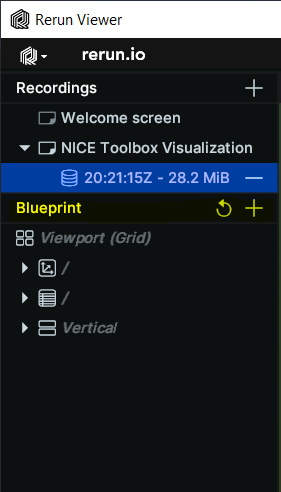
This Blueprint can be saved using the Save blueprint... menu option and reopened later using the
Open option. Once you configure the Rerun viewer, it will use the same blueprint for future sessions.
You can reset the layout by clicking Reset Blueprint.
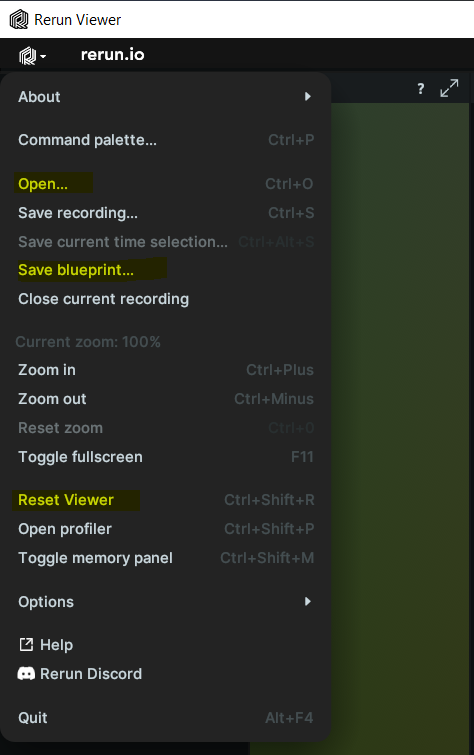
If your new video does not have certain windows that the old dataset had, unused empty windows may appear. To get a fresh heuristic layout, reset the blueprint.